Logging Tickets with Pylon
Last updated: August 14, 2026
Changes to Redpanda Support: What to Expect on August 17
On Monday, August 17, 2026 (2026/08/17) Redpanda is moving to a new support ticketing backend and a new Slack integration. Most of what you do day to day stays the same, you'll still open tickets from Slack, the web portal, or email, and the portal stays at support.redpanda.com.
This article covers what changes, what doesn't, and the few things you may need to do yourself.
Your existing tickets
Open tickets created in the web portal
Refresh the portal on 2026/08/17. The interface will look different, but your open tickets will be there with the same ticket numbers you're already using and you can continue updating them as normal.
Open tickets created in Slack
Your ticket will be issued a new ticket number, which will be posted in the Slack thread. Keep using the same Slack thread — no need to start a new one, your engaged Support team members will still see your updates.
Open tickets created via Email.
You will receive an email from our new ticketing system Pylon, about your ticket with the same ticket number, respond via that new email, or use the portal at support.redpanda.com
Closed tickets
All closed tickets are migrating to the new system. You'll continue to access them through the web portal at support.redpanda.com, and via the existing slack threads. Your closed ticket numbers will stay the same so you can reference them when talking to Support or your CS team.
Creating new tickets
You can still open a support request three ways: Slack, the web portal, or email.
From Slack
Add the 🎫
::ticket::reaction to the first message in the thread. This opens the ticket form.
Fill in the ticket details and submit.
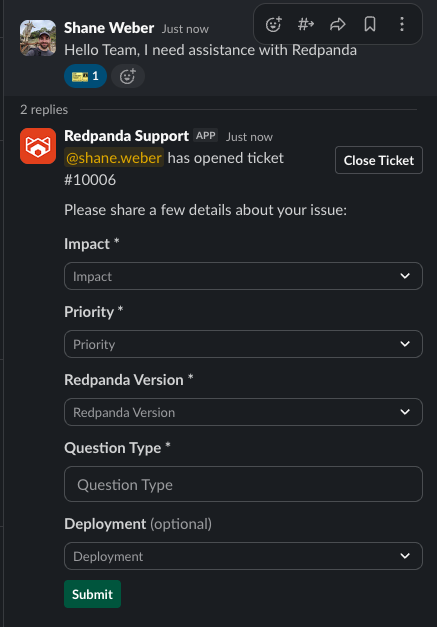
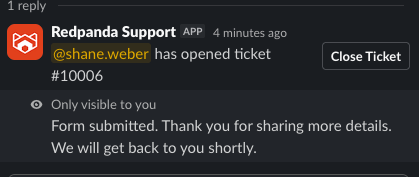
Continue the conversation in the Slack thread as you normally would. Everything posted there updates your ticket in our support system and is also visible in the support.redpanda.com portal.
You can close the ticket yourself at any time.
From the web portal
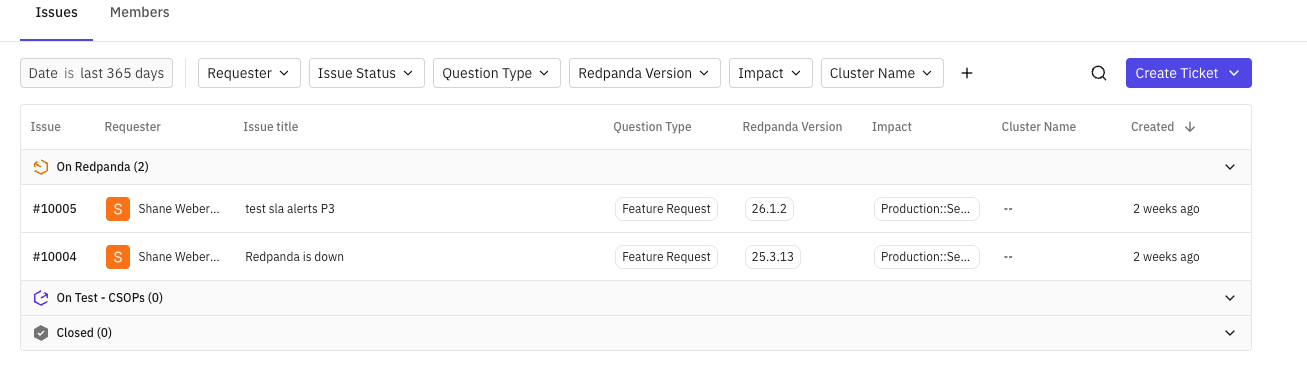
Go to support.redpanda.com to view and log tickets. You will log in via a code sent to your email when attempting to access the page. The UI has changed, but you should be taken straight to your tickets after entering your log in code. We recommend bookmarking the page.
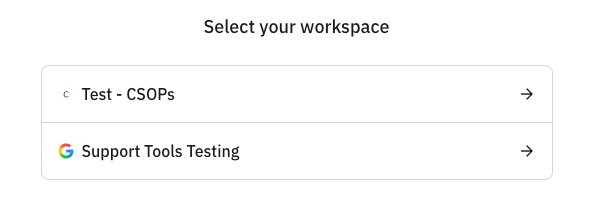
If you belong to more than one organization, you'll be prompted to choose which organization you're signing in for.
By email
Email support@redpanda.com to open a new request. You can also reply by email to any ticket, whether it was created in Slack or the portal.
Knowledge Base
Knowledge base articles will be located at knowledgebase.redpanda.com as of 2026/08/17, all existing articles will be migrated.
If you have links to existing articles you will need to search for those articles in the new system and save those links.